$url = 'https://my-domain.com/api/v2/users/order/12345?nonce=89462486239839&user=kfneklfnefkflne&key=vkjsiueve';
PHP 8.5 class
$uri = new Uri($url);

$result = [
	'host' => $uri->getHost(),
	'path' => $uri->getPath(),
	'query' => $uri->getQuery()
];
This take 14.8 µs
Old way using parse_url()
$url = 'https://my-domain.com/api/v2/users/order/12345?nonce=89462486239839&user=kfneklfnefkflne&key=vkjsiueve';
$result = parse_url($url);
this take 3.1 µs
A data-backed deep dive into how plugins like WooCommerce load hundreds of unnecessary files and what it means for performance, sustainability, and WordPress’s future.
When it comes to optimizing WordPress performance, all eyes are on the front end. Page builders talk endlessly about "clean HTML," asset minification, or lazy-loading images to improve Lighthouse scores. However, there's one area that's almost completely overlooked—despite its significant impact: backend bloat.
Behind every slow WordPress site is a web of autoloaded plugin files, unnecessary classes, and functions that run even when they’re not needed. WooCommerce is one of the most powerful and widely used plugins in the WordPress ecosystem—but it's also one of the most bloated. Over the years, it has quietly grown into a backend heavyweight, affecting Time to First Byte (TTFB) even on pages that don’t touch e-commerce functionality at all.
In this post, I’ll walk you through a series of real-world measurements comparing WooCommerce versions from 5.6.2 to 10.1.2—both in empty test installs and on a real e-commerce site. The results demonstrate the significant amount of unnecessary overhead introduced in newer versions and its direct impact on backend speed, memory usage, and cold start performance.
My Journey into the World of Bloated Plugins
This all started when I took over maintenance and admin work on a busy WooCommerce-based e-shop for a long-term client. The site was far from minimal—it ran over 90 active plugins, WooCommerce with multiple plugins for shipping, membership, subscription, and a busy blog with ads, premium access...
At first, I reached for what most developers do: a plugin that promised plugin optimization. I tried one called “Plugin Optimiser.” It worked to some extent, but it was too rigid and lacked the level of control I needed. So I forked it. And then eventually, I rewrote it entirely—what began as a hack turned into a full-featured tool I now maintain: Advanced Plugin Filter.
With it, I built over 60 filters for that single site—each one tuned to load only the necessary plugins depending on the request type: front-end, admin, AJAX, REST API, Cron jobs, and more. It was the only way to keep the experience usable without removing core features the business relied on.
The results were immediate.
AJAX calls that used to feel stuck now respond in milliseconds. Admin pages, especially those related to WooCommerce orders, became actually pleasant to use. We shaved entire seconds off the TTFB just by cutting out the dead weight. According to today’s stats, the average TTFB on a product page is 660ms when full page cache is not used and running on one of the fastest CPUs money can buy today.
Of course, it’s not a silver bullet.
Some plugins don’t play well when you try to disable them in certain branches—routing breaks, actions are skipped, or hooks don’t fire. And it does add complexity: every plugin you introduce has to be tested across contexts. But the trade-off is worth it when you're trying to run a high-functioning e-commerce site on WordPress at scale.
What WordPress really needs is a cultural shift: where back-end performance is treated with the same seriousness as front-end, with arrival of the Oxygen builder. Just like you wouldn’t load 1.5MB of unused CSS, plugin code that’s never used in a given request should not be loaded at all.
Methodology: How I Measured Backend Bloat
To measure how WooCommerce’s backend footprint has grown over time, I designed two test scenarios: one controlled and minimal, the other based on a real-world WooCommerce store. Both were run locally on Windows for consistent environment control.
Test Scenarios:
1. Clean WordPress Install – Minimal Load
This scenario isolates WooCommerce to reveal its standalone impact.
- WordPress Version: 6.8.2 (latest)
- Active Plugin: Only WooCommerce
- Theme: Intentionally blank (no page content)
- Purpose: Measure baseline TTFB, file count, and OPcache memory usage with zero plugin or theme interference.
2. Real-World Store Clone
This scenario replicates a real e-commerce site with all the usual complexity.
- Source: Copy of an actual WooCommerce store running locally
- Theme: Astra theme + child custom-built theme
- Plugins: 60+ active plugins, including WooCommerce add-ons
- Advanced Plugins Filter: Disabled – no conditional loading
- Purpose: Measure real-world overhead, including complex product rendering, plugin load, memory pressure, and TTFB.
A Note on "TTFB"
While TTFB (Time To First Byte) is a widely used term, what I measured technically isn’t the traditional TTFB reported by browser dev tools or external monitors.
Instead, I measured the time between when WP_START_TIMESTAMP is defined in WordPress Core and when the PHP shutdown function is triggered — just after the main thread finishes executing.
This means my values exclude:
- Web server overhead (e.g. Nginx or Apache response delay)
- SSL negotiation or TLS handshake
- Firewall, proxy, or CDN delays
- Network latency or ISP routing time
I chose this approach intentionally. It isolates the part of the request lifecycle that WordPress plugins and themes can actually influence — making it a more accurate reflection of backend bloat, rather than external delivery issues.
That said, for the sake of readability, I still refer to it as TTFB throughout this post. Just know that this is a focused, internal measurement — not the browser-visible TTFB from tools like Lighthouse or WebPageTest.
Where & What Was Measured
Each scenario focused on specific backend points to maintain comparability:
1. Minimal Install
Tested Page: /wp-admin/tools.php (standard admin Tools screen)
Why? It's a neutral backend screen where WooCommerce doesn’t need to do anything—but still loads.
2. Real Store
Tested Page: A product page with multiple variations and bundles.
Why? Real-world frontend scenario with the full stack running.
Metrics Captured
For each scenario and WooCommerce version, I captured:
- Number of PHP files loaded
- OPcache memory used after plugin load
- TTFB (Time To First Byte) using PHP script
Cold vs Warm Run
Each request was measured under two conditions:
Cold Run:
- The PHP process was restarted to flush OPcache.
- Simulates first load after a OPcache TTL has timed out.
- Captures full load + compile time.
Warm Run:
- The same request was repeated immediately after a cold load.
- OPcache has been made.
- Captures typical user experience during normal use.
It’s important to understand that OPcache has a time-to-live (TTL). In real-world scenarios, especially on sites that don’t receive constant traffic or run on shared hosting, there’s a high chance that OPcache won’t always be ready. When that happens, PHP has to reload all the files, parse them, compile them, and repopulate the OPcache before it can run the code.
I know this firsthand because I’ve measured real-world e-shops. Even on high-performance dedicated servers running low load, if the OPcache isn’t ready, you’ll see a +5 second spike in TTFB. On shared or less performant hosting, that possibility is even higher. That’s why we have to consider cold runs as a realistic scenario—because it does happen in the wild.
Measurements – Scenario 1: Minimal WooCommerce Install
To understand WooCommerce’s true backend footprint, I first measured it in total isolation.
This scenario used the cleanest setup possible: a fresh WordPress install on Windows, with only one plugin activated — WooCommerce — and an intentionally blank theme. No caching layers, no object cache, no CDN. Just WordPress, WooCommerce, and a stopwatch script.
The tested page was /wp-admin/tools.php — a backend admin screen where WooCommerce has no visible presence or functionality. In theory, this page shouldn’t require WooCommerce at all. And yet, as you’ll see, WooCommerce still autoloads hundreds of files and introduces measurable delay.
To make the difference clear, I also measured the same page with no plugins at all, using WordPress core only.
| Version | Files Loaded | OPcache Memory | Cold TTFB | Warm TTFB |
|---|---|---|---|---|
| WordPress Core Only | - | – | 580 ms | 30 ms |
| WooCommerce 5.6.2 | 493 | 10 MB | 1.1 s | 130 ms |
| WooCommerce 7.5.1 | 746 | 13 MB | 1.2 s | 130 ms |
| WooCommerce 10.1.2 | 893 | 19 MB | 1.4 s | 140 ms |
Observations
- WordPress Core Only was very fast: just 30 ms warm TTFB
- WooCommerce 5.6.2 more than doubled cold TTFB (+520 ms) and pushed warm TTFB up to 130 ms.
- Later versions of WooCommerce added even more files and memory overhead — reaching 893 files and 19 MB memory in version 10.1.2.
- Despite not being used at all on the /tools.php page, WooCommerce loads its full stack — including shipping logic, analytics classes, and Gutenberg support.
In short: WooCommerce does not respect context. Even on a backend page it has no reason to touch, it autoloads everything — costing hundreds of milliseconds and consuming server memory.
Next, let’s see how this changes when we measure WooCommerce in a real-world environment, with dozens of active plugins, a custom theme, and live product pages. Note, I couldn't downgrade to 5.6.2, so measurements are missing.
Measurements – Scenario 2: Real-World WooCommerce Site
| Version | Files Loaded | OPcache Memory | Cold TTFB | Warm TTFB |
|---|---|---|---|---|
| WooCommerce 7.5.1 | 746 | 13 MB | 3.7 s | 1.0 s |
| WooCommerce 10.1.2 | 844 | 20 MB | 4.6 s | 1.1 s |
Observations
- old TTFB is way too slow — with version 10.1.2 taking 4.6 seconds to generate the product page on first load.
- Warm TTFB is also slow — even after OPcache kicks in, the response time still hovers around 1 second. That’s significantly higher than acceptable for any modern frontend interaction. And it's important to understand that many other plugins contributed to this value, not only WooCommerce
Next, let’s break down what exactly is consuming this time — which functions and files are responsible for the slowdown, and whether they’re actually needed.
What’s Causing the Slowdown?
To understand where WooCommerce was spending time on the product page, I profiled the real-world with version 10.1.2 using plugin Code Profiler Pro. The results were clear: the bloat isn’t just about file count or memory — it’s what those files do at runtime.
From the profiler output:
- 12 out of the top 20 slowest functions or methods came directly from WooCommerce.
- A significant amount of time was spent inside the WooCommerce autoloader, just pulling in classes.
- Multiple slow methods were related to Gutenberg blocks, despite the site not using Gutenberg at all.
- Large objects added into $_GLOBALS
- Even without any block editor in use, WooCommerce loads all its block-related logic, including block registration and associated analytics or admin code.
These aren’t just theoretical inefficiencies. They show up in TTFB and compound with every plugin and feature WooCommerce insists on loading globally, regardless of context.
Conclusion – This Isn’t Just a WooCommerce Problem
WooCommerce is the case study here — but it’s just the tip of the iceberg. I used it because it makes it easier to demonstrate the point because of its size. But make no mistake — 99% of plugins contribute to this problem in some form. And yes—even those that claim to be performant, lightweight, optimized, and built by long-term community members and developers. The hype is real. But don’t just take my word for it—see for yourself how many files it required to load on a neutral page. I’ve yet to see a plugin truly developed to be lean and frugal in what PHP files it loads.
This is already doing damage.
The narrative that “WordPress is slow” isn’t just perception — it’s becoming reality. And not because of WordPress Core, but because of how the ecosystem evolved without any backend loading discipline. The platform’s reputation suffers. And with AI and vibe coding, the worst is yet to come.
If this doesn’t change, WordPress risks going the way of Kodak, BlackBerry, Nokia, and others—once dominant, but ultimately unable to evolve within the very environment they helped define.
And yes, speaking of environment — there’s a real cost to this inefficiency. WordPress powers over 40% of the internet. The amount of electricity wasted on parsing, compiling, and executing unused PHP code on millions of requests per second word-wide is difficult to calculate — but undeniably massive. Optimising backend loading behaviour at scale wouldn’t just improve performance — it would have a measurable impact on the web’s carbon footprint.
This is about more than shaving off milliseconds. It’s about acknowledging that we’ve been ignoring the backend for too long, and it’s starting to catch up with us.
I originally used Plugin Optimizer to try to mitigate this — and eventually rewrote it into my own tool, Advanced Plugin Filter, because there was no way to control what didn’t need to load. As already mentioned, plugins filtering has its trade-offs not many users want to deal with. This mindset should be built into plugin development from the start.
If we want WordPress to survive and thrive in the years ahead, we need to get serious about backend performance—not only for speed, but also for sustainability, credibility, and the long-term health of the WordPress ecosystem.
Let's start the discussion! Let me know what you think in the comments section or through the contact form.
In my current project, I needed to fetch data from an API, sanitize it, and return it in a form that is easy to work with. Over the years, I have accumulated snippets and go-to methods for various tasks, but I haven't spent much time refining them. I write code with a focus on performance, readability, and potential enhancements. When I wrote the first version of this code, which was essentially a bunch of if statements, it struck me that for a sequence of conditions, I could use switch(true). I refactored the code, first using the ?? NULL coalescing operator.
Then, I realized that starting with empty() would be better for readability. I should mention that an important principle in my code is "return early," and using empty() at the beginning is ideal.
After trying a few variations, I settled on the following steps:
- Verify that the nonce is populated.
- Check if the nonce is valid.
- Ensure data keys like order_id and user_id are not empty.
- Confirm that values expected to be numeric are indeed numeric.
- Verify the format is either "epub" or "mobi" only.
Here is my refactored function:
function get_ajax_data(){

switch(true){

  case !has_valid_nonce():
  case empty($_POST['order_id']):
  case empty($_POST['ebook_id']):
  case empty($_POST['user_id']):
  case empty($_POST['action']):
  case empty($_POST['format']):
  case empty($_POST['order_id']):
  case !is_numeric($_POST['order_id']):
  case !is_numeric($_POST['ebook_id']):
  case !is_numeric($_POST['user_id']):
  case !($_POST['format'] === 'epub' || $_POST['format'] === 'mobi'):

    return false;
}

  return [

    'action' => ltrim($_POST['action'],'ebook-insert-client-'),

    'format' => $_POST['format'],

    'order_id' => $_POST['order_id'],

    'ebook_id' => $_POST['ebook_id'],

    'user_id' => $_POST['user_id'],

  ];

}

function has_valid_nonce(){

if( empty($_POST['nonce']) ) return false;

require_once ABSPATH.'wp-includes/pluggable.php';

return wp_verify_nonce( $_POST['nonce'], 'ebook-insert-client-ajax' );

}
URL Validation
The next step was to validate the URL. In PHP, this is pretty straightforward, right? Well, sort of.
case !filter_var( $post['ebook-url'], FILTER_VALIDATE_URL):
Since I’m writing code for WordPress, I could use the wp_http_validate_url() function, but after looking at the source code, I found it to be overly complex and unnecessary for my case. So, I stuck with filter_var().
In this case, I need to receive a URL with a query string with a timestamp. Initially, I used the native PHP function filter_var(), but when I examined what this function considers a valid URL, I realized it was too broad for my use case. So, I moved it into a function and added disqualifying logic:
function is_url_valid($url){

  switch( true ){

    case $url[0] !== 'h': //to disqualify ftp://
    case str_contains($url,'@'): //to early disqualify email
    case str_contains($url,'user:'): //to early disqualify login
    case str_contains($url,'..'): // 'http://example..com' will pass as a valid URL by var_filter() WTF?!
      return false;

    default:

    return filter_var($url, FILTER_VALIDATE_URL);

  }

}
Parsed URL validation
Then I needed to handle parsed URLs. In this scenario, the URL must always have a .epub extension and a numerical value as the query string.
case $parsed_url = parse_url( $post['ebook-url'] ): //early return if URL could not be parsed

case empty($parsed_url['host']):

case empty($parsed_url['query']):

case !is_numeric($parsed_url['query']):

case empty($parsed_url['path']):

case str_contains($parsed_url['path'],'//'): // two slashes "//" will pass as valid URL via filter_var() WTF?!

case !str_ends_with($parsed_url['path'], '.epub'): // in this case only .epub file extension is expected
Yes, I know this might be controversial. Declaring variables in an if statement is generally not considered good practice. However, since this is a switch statement, it looks a bit different and I would argue it's still easy to read and comprehend. If you're using a modern code editor like VS Code, you won't have any issues seeing where the variable comes from, especially given the self-explanatory name.
Performance check of this code
Without delving into too many details, I found that the slowest part of this process is the WordPress core function wp_verify_nonce(), which takes about 900 microseconds, and I can't do anything about it. Without nonce verification, the rest of the code runs in just 3 microseconds on my local environment. That's pretty efficient, isn't it?
Conclusion
From now on, I plan to use this approach to handle input data, disqualifying malformed or corrupted inputs early and letting only sanitized data pass through. While this article focuses on using switch(true) to quickly filter out bad data, the concept applies to other scenarios too. For instance, when handling inputs like emails or names, I would employ different sanitization techniques to guard against SQL injection and other security risks. The key takeaway is the strategy of catching potential issues early, whether due to incorrect data or malicious attempts.
I'm looking forward to your feedback, are there any weaknesses or areas for improvement, or should I reconsider this approach because there's something better out there? Let me know in the comments below.
PHP 8.4 is coming soon, and it will introduce a few new and useful functions. In WP core, there have historically been so-called pluggable functions, allowing WP plugins and themes to use new functions as long as WP is running on a certain version. Here is my take on the new functions in PHP 8.4:
if(!function_exists('array_find')){
	function array_find(array $array, callable $callback){
		foreach($array as $value){
			if($callback($value)){
				return $value;
			}
		}
		return null;
	}
}

if(!function_exists('array_find_key')){
	function array_find_key(array $array, callable $callback){
		foreach($array as $key => $value){
			if($callback($value)){
				return $key;
			}
		}
		return null;
	}
}

if(!function_exists('array_any')){
	function array_any(array $array, callable $callback){
		foreach($array as $value){
			if($callback($value)){
				return true;
			}
		}
		return false;
	}
}

if(!function_exists('array_all')){
	function array_all(array $array, callable $callback){
		foreach($array as $value){
			if(!$callback($value)){
				return false;
			}
		}
		return true;
	}
}
To test it, here is some code you can run to see how it behaves.
$array = [1, 3, -7, 9];

// 1. array_find: Find the first negative number in the array
$found = array_find($array, function($value){
    return $value < 0;
});
echo "First negative number: " . ($found !== null ? $found : "None found") . "\n";
// Output: First negative number: -7

// 2. array_find_key: Find the key of the first negative number
$found_key = array_find_key($array, function($value){
    return $value < 0;
});
echo "Key of first negative number: " . ($found_key !== null ? $found_key : "None found") . "\n";
// Output: Key of first negative number: 2

// 3. array_any: Check if any number in the array is negative
$any_negative = array_any($array, function($value){
    return $value < 0;
});
echo "Any negative number: " . ($any_negative ? "Yes" : "No") . "\n";
// Output: Any negative number: Yes

// 4. array_all: Check if all numbers in the array are positive
$all_positive = array_all($array, function($value){
    return $value > 0;
});
echo "All positive numbers: " . ($all_positive ? "Yes" : "No") . "\n";
// Output: All positive numbers: No
If this makes it into WP core soon, it will be great for implementing these functions into the plugins and themes codebase.
UPDATE:
I've received feedback from the community that Tailwind can be filtered into a version containing only used classes. Maybe it's not that bad, but I can't see how it would work for me as adds unnecessary steps to my workflow. "Keep it simple" is my philosophy.
Original article:
In the ever-evolving landscape of web development, developers are constantly on the lookout for tools and frameworks that promise to make their lives easier and their websites more efficient. One such tool that has gained significant popularity in recent years is Tailwind CSS. Tailwind is praised for its utility-first approach and the ability to rapidly build custom designs without leaving your HTML. However, as with many hyped-up tools, there are often hidden drawbacks that are not immediately apparent. In this post, we’ll explore one of the major downsides of using Tailwind CSS—its sheer size and the unnecessary bloat it introduces.
The Size of Tailwind CSS
Recently, I created a simple website using Tailwind to investigate just how big the Tailwind CSS files are and how many lines of code they contain. To my astonishment, the current version of Tailwind CSS downloaded amounted to 154KB. This may not sound overly alarming at first glance, especially in the age of high-speed internet. However, a deeper dive using Chrome’s coverage console revealed a staggering reality: the CSS file contained about 175000 lines of code or 3MB of uncompressed CSS.
Yes, you read that correctly— 175000 lines of CSS code in a single file. This is by far the largest CSS file I have ever encountered. Such a massive file introduces significant bloat and can severely impact the performance of your website.
Why Tailwind's Size Matters
Unnecessary Bloat
The primary issue with such a large CSS file is the unnecessary bloat it creates. Bloat refers to the inclusion of redundant or unnecessary code that does not contribute to the functionality of the website. In the case of Tailwind, the utility-first approach means that the CSS file includes styles for every possible utility class, regardless of whether they are used in your project or not. This results in an enormous CSS file that needs to be downloaded every time a user visits your website.
Wasted Computing Power
Every time a user loads a webpage, their browser has to parse and render the CSS file. With a file as large as Tailwind's, this process consumes significantly more computing power and resources. This can lead to slower load times, especially on devices with limited processing capabilities, such as mobile phones or older computers. In a world where users expect websites to load almost instantaneously, even a slight delay can result in a poor user experience and potential loss of visitors.
Impact on the Website Speed
Website speed is a crucial factor in user retention and search engine rankings. A slow-loading website can frustrate users and lead to higher bounce rates. Additionally, search engines like Google consider page speed as a ranking factor. Therefore, using a CSS framework that introduces unnecessary bloat can directly impact your website’s SEO performance and overall user satisfaction.
Filtering Tailwind CSS: A Possible Yet Imperfect Solution
While it's true that there is a possibility of filtering Tailwind's original CSS to remove unused styles, Tailwind itself doesn't offer an official tool for this purpose. Instead, developers have to rely on third-party tools like PurgeCSS to achieve this. However, using these third-party tools can be a clumsy and often cumbersome process. They require additional configuration and maintenance, which can introduce complexity and potential points of failure into your build process. Moreover, these tools might not always be perfectly accurate, sometimes removing necessary styles or leaving behind unused ones. This adds an extra layer of troubleshooting and can detract from the time-saving benefits that Tailwind initially promises. Thus, while filtering is a potential workaround, it is not a perfect solution and highlights another drawback of adopting Tailwind CSS without careful consideration.
When I viewed websites built with Tailwind, they all seemed to be using much less CSS code, yet were still very bloated. It appears there are tools for JavaScript frameworks that can filter Tailwind, but it's not clear how WordPress developers can access these tools or how easy they are to use. This lack of clarity and straightforward integration for WordPress users further complicates the adoption of Tailwind CSS in traditional CMS environments. The additional steps and potential for errors can be discouraging, especially for developers seeking a streamlined workflow.
A Word of Caution
The allure of new and shiny libraries promoted by YouTube influencers and other online sources can be tempting. However, as developers, it is our responsibility to thoroughly test and evaluate these tools before integrating them into our projects. While Tailwind CSS offers some benefits, it’s essential to weigh these against the potential drawbacks.
Testing Before Adoption
Before adopting any new library or framework, take the time to conduct a thorough analysis. Test the impact on your website’s performance, check for unnecessary bloat, and consider the long-term implications. Sometimes, the initial convenience offered by a tool can lead to significant challenges down the line.
Conclusion
In conclusion, while Tailwind CSS might seem like an appealing option for rapid development, its substantial size and the unnecessary bloat it introduces make it a questionable choice for performance-conscious developers. To speed up your WordPress or any other web project, always test new tools and libraries rigorously. The best choice is often not the one that is most hyped, but the one that aligns best with your performance goals and project requirements.
Stay informed, test diligently, and make choices that ensure your websites are fast, efficient, and user-friendly. Happy developing!
It's important to filter data types and allow only what you can actually use. Bots always search for files like .zip or .sql that could contain private or security information. For this, we identify first that it's a URI path with a dot (http.request.uri.path contains ".") and then by exclusion we define what we want to allow, by adding a negative match.
With this approach, it's very important to check often if you might use any data type that is not on the list and firewall will block false positives.
I don't include on allow list .txt and .xml, why? Because .txt is the main source of information for hackers on what version of theme/plugin you're using, therefore they can detect vulnerabilities and exploit them. Robots.txt, ads.txt and similar should be whitelisted if you don't set in Allow rulest known bot to get unrestricted access.
XML as well is very often used to identify pages that you can't crawl into and provides information for a hacker or malicious crawlers. Therefore I never allow unknown bots to access it, and I recommend making sure that for known bots you whitelist access by adding the path to Allow ruleset.
Data type .html in WordPress is not used, and accessing it will only required linke for Google or Pinterest for domain authorization purposes. ".html" should be whitelisted for known bots
(http.request.uri.path contains "."
and not ends_with(http.request.uri.path, ".php")
and not ends_with(http.request.uri.path, ".aac")
and not ends_with(http.request.uri.path, ".css")
and not ends_with(http.request.uri.path, ".eot")
and not ends_with(http.request.uri.path, ".gif")
and not ends_with(http.request.uri.path, ".jpeg")
and not ends_with(http.request.uri.path, ".jpg")
and not ends_with(http.request.uri.path, ".js")
and not ends_with(http.request.uri.path, ".less")
and not ends_with(http.request.uri.path, ".mp3")
and not ends_with(http.request.uri.path, ".mp4")
and not ends_with(http.request.uri.path, ".ogg")
and not ends_with(http.request.uri.path, ".otf")
and not ends_with(http.request.uri.path, ".pdf")
and not ends_with(http.request.uri.path, ".png")
and not ends_with(http.request.uri.path, ".svg")
and not ends_with(http.request.uri.path, ".ico")
and not ends_with(http.request.uri.path, ".ttf")
and not ends_with(http.request.uri.path, ".webp")
and not ends_with(http.request.uri.path, ".woff")
and not ends_with(http.request.uri.path, ".woff2"))
Ruleset part 1
Here is my ruleset to block bad bots with the Cloudflare firewall. I'm filtering SEO bots like Ahrefs or Moz, if you're using them then of course remove them from the ruleset.
(http.user_agent contains "Semrush") or
(http.user_agent contains "ahrefs") or
(http.user_agent contains "moz.com") or
(http.user_agent contains "80legs") or
(http.user_agent contains "Abonti") or
(http.user_agent contains "admantx") or
(http.user_agent contains "aipbot") or
(http.user_agent contains "AllSubmitter") or
(http.user_agent contains "Backlink") or
(http.user_agent contains "backlink") or
(http.user_agent contains "Badass") or
(http.user_agent contains "Bigfoot") or
(http.user_agent contains "BLEXBot") or
(http.user_agent contains "Buddy") or
(http.user_agent contains "CherryPicker") or
(http.user_agent contains "cloudsystemnetwork") or
(http.user_agent contains "cognitiveseo") or
(http.user_agent contains "Collector") or
(http.user_agent contains "cosmos") or
(http.user_agent contains "CrazyWebCrawler") or
(http.user_agent contains "Crescent") or
(http.user_agent contains "Devil") or
(http.user_agent contains "DittoSpyder") or
(http.user_agent contains "Konqueror") or
(http.user_agent contains "getintent") or
(http.user_agent contains "Grabber") or
(http.user_agent contains "GrabNet") or
(http.user_agent contains "HEADMasterSEO") or
(http.user_agent contains "heritrix") or
(http.user_agent contains "htmlparser") or
(http.user_agent contains "hubspot") or
(http.user_agent contains "Jyxobot") or
(http.user_agent contains "larbin") or
(http.user_agent contains "ltx71") or
(http.user_agent contains "leiki") or
(http.user_agent contains "LinkScan") or
(http.user_agent contains "Magnet") or
(http.user_agent contains "Mag-Net") or
(http.user_agent contains "Mechanize") or
(http.user_agent contains "MegaIndex") or
(http.user_agent contains "Metasearch") or
(http.user_agent contains "MJ12bot") or
(http.user_agent contains "Navroad") or
(http.user_agent contains "Netcraft") or
(http.user_agent contains "niki-bot") or
(http.user_agent contains "NimbleCrawler") or
(http.user_agent contains "Nimbostratus") or
(http.user_agent contains "Ninja") or
(http.user_agent contains "Openfind") or
(http.user_agent contains "Pixray") or
(http.user_agent contains "probethenet") or
(http.user_agent contains "proximic") or
(http.user_agent contains "psbot") or
(http.user_agent contains "RankActive") or
(http.user_agent contains "RankingBot") or
(http.user_agent contains "RankurBot") or
(http.user_agent contains "Reaper") or
(http.user_agent contains "SalesIntelligent") or
(http.user_agent contains "SEOkicks") or
(http.user_agent contains "spbot") or
(http.user_agent contains "SEOstats") or
(http.user_agent contains "Snapbot") or
(http.user_agent contains "Stripper") or
(http.user_agent contains "Siteimprove") or
(http.user_agent contains "sitesell") or
(http.user_agent contains "Siphon") or
(http.user_agent contains "Sucker") or
(http.user_agent contains "TenFourFox") or
(http.user_agent contains "TurnitinBot") or
(http.user_agent contains "trendiction") or
(http.user_agent contains "twingly") or
(http.user_agent contains "VidibleScraper") or
(http.user_agent contains "WebLeacher") or
(http.user_agent contains "WebmasterWorldForum") or
(http.user_agent contains "webmeup") or
(http.user_agent contains "Widow") or
(http.user_agent contains "Xaldon") or
(http.user_agent contains "Xenu") or
(http.user_agent contains "xtractor") or
(http.user_agent contains "Zermelo") or
(http.user_agent contains "ZoominfoBot") or
(http.user_agent contains "brands-bot") or
(http.user_agent contains "bbot") or
(http.user_agent contains "brands-bot-logo") or
(http.user_agent contains "python") or
(http.user_agent contains "java") or
(http.user_agent contains "Turnitin") or
(http.user_agent contains "bit.ly") or
(http.user_agent contains "PulsePoint-Ads") or
(http.user_agent contains "Bloglovin") or
(http.user_agent contains "PetalBot") or
(http.user_agent contains "webmeup-crawler") or
(http.user_agent contains "wp_is_mobile") or
(http.user_agent contains "Seekport") or
(http.user_agent contains "DotBot") or
(http.user_agent contains "BLEXBot") or
(http.user_agent contains "paloaltonetworks") or
(http.user_agent contains "Go-http-client")
Ruleset part 2
Here is part 2 because the Cloudflare rule has a limited length. For that, you need to create another ruleset.
(http.user_agent contains "Barkrowler") or
(http.user_agent contains "YahooMailProxy") or
(http.user_agent contains "SentiBot") or
(http.user_agent contains "IonCrawl") or
(http.user_agent contains "netEstate") or
(http.user_agent contains "Geedo") or
(http.user_agent contains "DataForSeoBot")
Important!
After you apply any of these rules, make sure you monitor what requests have been blocked and try to identify false positives.
Most of the blog posts dedicated to speed just point out that we need to measure website speed and offers links to online tools that can do the jobs, but don't explain how and what to measure. For those who are looking for a one-click-solve-all solution will this article be a great disappointment. But those who stay can learn how to get the most accurate measurement and what tools to use.
1. What's the most important point on the website to measure?
In our previous post Website loading speed explained we describe what matters to the real world visitor. Just as a quick reminder here are the most important points to measure:
- First paint
- First meaningful paint
- Visually Complete
- Time to Interactive
All these vectors will influence how your visitor will experience your website so that's why important is to measure them.
2. Geographical location
The golden rule of the physical location of the hosting is its geographical proximity to the most important visitors. Where we're making the measurement is as important as what we're measuring. Why? It's because with longer distance increases the lag and distorts the values. Where do you want to measure the loading speed of your website?
- As close to the server as possible. Why? Because we cannot influence anything beyond the server, I mean the infrastructure that connects users.
- Where your most important or targeted audience is. So for example, if you have 80% of your visitors in US and 20 in Australia, you want to measure both, especially if you're using the CDN
2.1 Do you know where your hosting has its servers and are you sure it's actually there?
In our practice, we found that most inexperienced WordPress users have no clue where their website is located. We had a case of a beauty e-shop in that the hosting company assured the user of hosting the server in Singapore, but after the test, we found out it was actually in the US. How do you find the location of your server? Easy!
- go to KeyCDN ping testing tool
- enter your server IP address (if you don't know what is it, just ask your support)
- look at the column "Min" where is the lowest number, that's location is closest to your hosting

3. Tools to measure website speed
There are few popular tools but after years of testing their reliability, we came to the conclusion that there are only two that get the most accurate readings. Which ones they are?
- Webpagetest.org
- Google Chrome developer console
With these two tools, you can get the data you need to understand how your website is loading. There are other tools, like GTMetrix or Pingdom, but we find them unreliable, confusing or lacking the necessary options to get precise measurements.
Google Speed Insight is great to get a score of User Experience but that's something different than loading speed itself. It's because you get low score with for example Cumulative layout shift, but the website is loaded exactly the same time as if CLS
3.1 Webpagetest.org
After performing thousands of tests and comparing results with real-world data, the WebsPageTest.Org came to us as more reliable with most possibilities of collecting important data. Its most important features are:
- 30+ location all over the world
- Broadband and mobile 3G,4G network simulation
- CPU simulation of mobile devices
- Variety of desktop and mobile browser simulation
- The capture of the video of how the tested website has been rendered
- Waterfall of requests
- Request/respond headers
- Unique URL for comparisons of results
It may appear too geeky but to start to measure the loading time of your website, you need to set just a few basic settings like location, connection type, and you are good to go. But before we dig into measuring itself, let's talk about methodology and the process, and that after Google Develop Console
3.2 Google Chrome Developer console
Google Chrome became the most popular browser some time ago and besides of ability to browse the world wide web, it offers a Developer Conole. If you're not familiar with it, it's a tool that helps developers to create and tune websites so they run as expected. It offers a wide range of features and for the purpose of measuring, we will use only one part called "Network". To get there just press F12 and set up all settings that are indicated with the arrow or triangle:
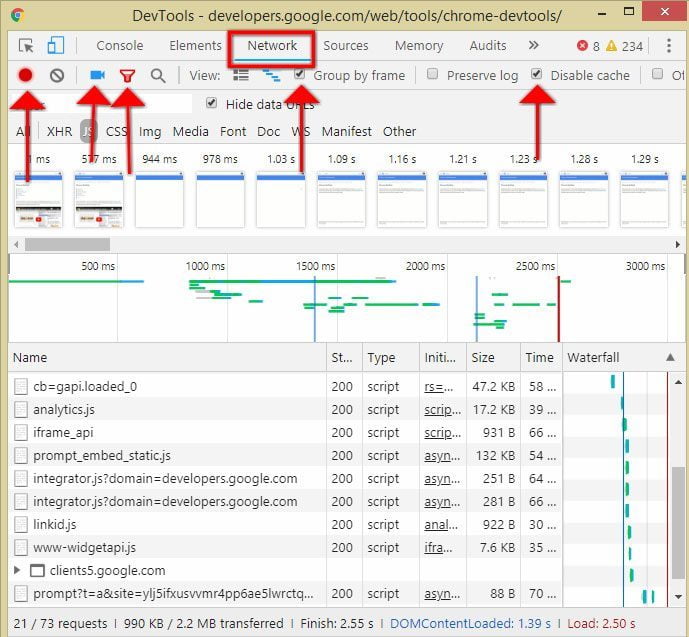
Now we are good o go to measure the loading time on the Google Chrome developer console.
4. The methodology for measuring the speed of the website
4.1 Key performance indicator - KPI
In order to focus on measurement, we've got to have clear our key performance indicators - KPIs. We need to ask the question of what is important and where to measure it. In the beginning, we mention that First paint, First meaningful paint, Visually Complete and Time to interactive are the most important measure we need to get in order to understand our website. The next question is what URL we measure and from what location. Most users measure only the front page, and that's a good starting point but it should be the only one. For example, we have a real estate website where visitors can search for properties. If the front page loads in 1 second, but then it takes 10 to get the search result, you will lose a lot of visitors on the search page. A similar situation applies when you have for example a special landing page, if the first paint is 4 seconds, but the front page loads under 1, that's not very good either. I always recommend taking time and having a look at Google Analytics to see where visitors are landing at your website, as well as where they exiting. If there is a sub-page with a high exit rate, maybe there is something that makes it load slow and visitors leave.
4.2 Geographical testing location
Most inaccurate readings are made due to ignoring the fact that the geographical distance between the website server and the testing server matters a lot. As distance increases, loading time too. Therefore, we have to measure as close as possible to the website server.
To be continued...
The speed matters, what else?
It's 3 minutes reading + 5 minutes videos for better illustration.
Website speed is a concept that describes how people perceive the way how a website is displayed on a device they just using. It's about feeling what evokes in them, not the actual time.
It's all about the perception
When we're talking about loading time, it can't be reduced to a single number. Consider the following two scenarios where the top number is the time in seconds and under is what's displayed on the screen on the given time:

Both websites are loaded at the same time, 2.5 seconds. Which one would feel better to you? Do you prefer to stare at the empty screen for 2.5 seconds? No? Then it's the first one.
Loading time is not just one number.
To get the whole picture of website speed it would be impossible to get with only one single number. The reason is that different subpages may and often do loads differently. For example, the search page might get a longer loading time than "About us" page because to perform a search is much more server's resource-intensive. The most appropriate picture of the loading time is a distribution curve made from all data collected from all visitors of the website. It would look like this:
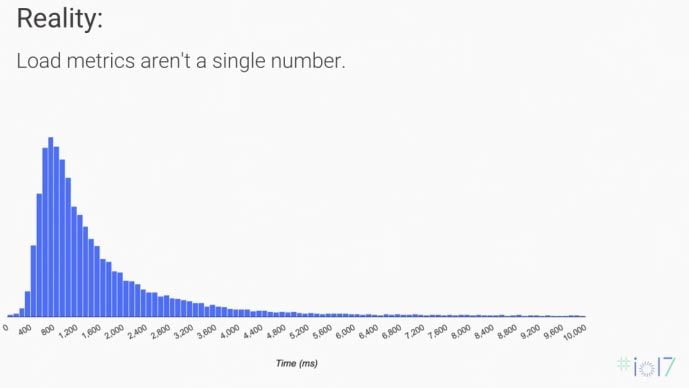
Source: Web Performance: Leveraging the Metrics that Most Affect User Experience (Google I/O '17)
For a few lucky ones this website will be loaded in 0.4s, for the majority, it will be 1.2s and for some, it will take up to 10s to load the website. The well-optimised website has loading time for the majority as close as possible to left.
What matters to every single visitor of your website?
How your website is perceived by your visitors is more important than how fast is loaded. Here are the key questions every visitor asks: https://developers.google.com/web/fundamentals/performance/user-centric-performance-metrics
- Is it happening?
- Is it useful?
- Is it usable?
- Is it delightful?
Let's break it down.
1. Is it happening?
How a user after clicking on the link can know if the website is actually working? A simple answer is: Screen is not blank, something being displayed since landing on the website. If there is a piece of the menu or just a spinning loader, that's much better than just a blank screen. Faster the website displays anything, makes it in the mind of the visitor know that is functional and lowers the probability of bouncing back.
2. Is it useful?
Let's imagine you search for a plumber and by clicking on the Google Search you get to the website promoting a course of becoming a plumber. Is that useful for you at that moment? No! How does it relate to the speed? Well, after your website starts to display step by step all elements, a user wants to know that this is the right page. The sooner you display a piece of content that represents this page, the less chance there would be that visitors will bounce back. It calls the "Hero content" and if the website is well optimised for speed, hero content is displayed as soon as possible.
Here is an example of a website with bad design and vague hero content displayed on the very end of the loading website:

As you can observe, the first bit that is displayed is an advertisement, logo, sharing buttons, search bar and menu. You have to wait till about 6 seconds to realise that is something about life insurance. Isn't it a bit late?
And now compare it to what I consider good hero content displayed fast:

On this website, the visitor knows already at 1.6 seconds that it's a spray tanning studio, and in 2.4 seconds the image of the procedure is displayed. No confusion with that, is it?
3. Is it usable?
This part is not that much related to the speed itself but to the user experience. I bet you've been to the website that has very small buttons and you were struggling to interact with the website. The important part that makes people browse your website, share it and come back is how easy can tap on the button, how easy it is to read the text and find the menu. I mention this bit because no use to have an ultra-fast website that people can't use. To find out more look for an article about Accessibility or look video Power to the People - The Low Hanging Fruit of Accessibility.
4. Is it delightful?
This bit as the previous one is related indirectly but there is one important part that can be influenced by the web developer and that's "Time to interactive". Look at the following situation:

In this video, you can see that on my phone the website was loaded quite fast but I had to wait like 5 seconds to start to interact with it. The cause of such a delay is using too much Javascript. Generally, Javascript is the element that mostly contributes to slowing down the time to load the website and to make it interactive.
Conclusion
As you can see, when we're talking about the speed of the website we have to consider various dimensions. The speed for the real-world user cannot be determined by a single number, a one-time measurement of one page or a score generated by online tools. Now the next question is: How to measure website speed to get the most accurate intel?